Business cards, WiFi and contact entry points: type less, connect more
Tell “save a copy of this information” apart from “open a page you can update”, pick the right form for contacts and guest networks, and do not mistake convenience for secrecy.
Key takeaways
- Encoding a contact directly and linking to a contact page are two different maintenance commitments.
- A WiFi code carries the connection details with it; it is not a secure wrapper that hides the password.
- What a phone actually does depends on the scanner and the operating system, so check before publishing.
Phone numbers, email addresses, URLs and network names are not hard to type, but out in the field it is very easy to copy one wrong, drop a digit or simply not bother saving it. A QR code removes some of that repetition. Still, “one step less typing” is not “the system does everything for you”. Choosing the right content type also means thinking about the other person’s device, whether the information will change, and who can read it once it is public.
This article looks at business cards, guest WiFi and contact entry points to show how to make the convenience clear and maintainable.
01 A card code: save the contact, or open an introduction first
A card format can carry a name, a phone number, an email address and an organization. vCard is a formally specified format for exchanging contact information, but different phones, scanning apps and versions display and import those fields differently, so the real behavior has to be checked.[1]
Encoding the contact details directly suits a small set of fields that rarely change and a situation where you want the other person to save them right away. Linking to a contact page suits showing a photo, a description of your services, several ways to get in touch or material you update often. The two should not be muddled: one carries a copy of the information, the other opens a page that has to keep being maintained.
If you want both, let the page offer an explicit “save contact” action while showing the most important public details. Do not put a whole staff directory or internal phone numbers on a public card; keep only the fields an outside conversation needs.
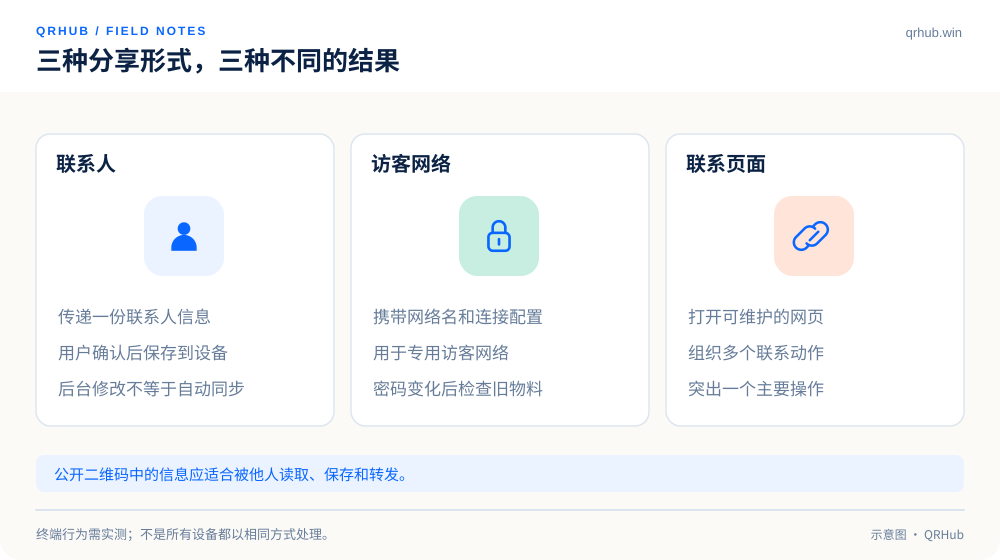
| Scenario | Suggested content | What to watch |
|---|---|---|
| Exchanging contacts in person | A short card record | Check the name, the phone number and how it imported |
| Presenting your services or a team | A contact page you maintain | Updating the page does not sync anyone’s address book |
| A customer joining the network | A dedicated guest WiFi configuration | The QR code contains the connection details |
| Getting someone to write an email | The address and an optional subject | The user confirms the send; it is not sent automatically |
02 “Saved” does not mean “will update itself later”
Say you encode a phone number straight into a card. Once someone scans it and saves it, their phone holds a copy of what was there at that moment. Editing your details later does not mean their address book changes too. Even when the card link can be updated, a contact already saved on a device usually needs a separate sync mechanism.
So material you change often is better served by one stable official page, with the short address printed on the card so that people can look again when they need to. Inside the team, record who maintains it: when someone leaves, changes role or the scope of a service shifts, who updates the page, retires the old entry point and checks the material already printed?
03 The point of guest WiFi is what it can reach
A typical WiFi QR code carries the configuration: the network name, the authentication type, the password. The ZXing documentation records the WIFI: form and the conventions for special characters. It helps a device fill in the details; it does not turn them into something only you can read.[2]
WIFI:T:WPA;S:QRHub-Guest;P:Demo-Only-Password;;That line is an example only and is not a network you can actually join. For the real thing, use a dedicated guest network and check that it is isolated from office devices, till systems and internal services. For a network name or password containing a semicolon, a backslash or similar characters, go through the generator’s proper encoding rather than assembling the string by hand and printing it.
Put the WiFi code where customers actually need to connect, and print the network name as text so that people can check it. When the password changes, replace every piece of old material: changing the password in the backend without replacing a static code leaves the table card carrying the old details.
04 Say up front what a phone or email entry point will do
“Contact us” sometimes opens a web page and sometimes launches the dialer or a mail app. The label should say which: “send us an email” or “call the store”. Do not let people scan and only then discover they are in a completely different kind of action.
A pre-filled subject line saves sorting effort, but the body should not contain credentials, order details or unnecessary personal information. For phone numbers, check the country or region code and any extension note. Either way, the user should confirm on their own device before anything happens; the copy should not imply that scanning has already completed the contact.
05 On a multi-entry page, rank the actions
When a page carries an email address, a phone number, social accounts, a website and a booking link at once, highlight the one action that matters most right now. Keep the others secondary instead of giving every button the same visual weight.
In the QRHub style, that means a deep blue heading, one brand-blue primary button and outlined secondary buttons on a light background. Keep only the introduction you need at the top of the page; the full brand story does not have to come before the contact actions. People arrive here to make contact, not to read the homepage again.
06 Run an unfamiliar-device test before publishing
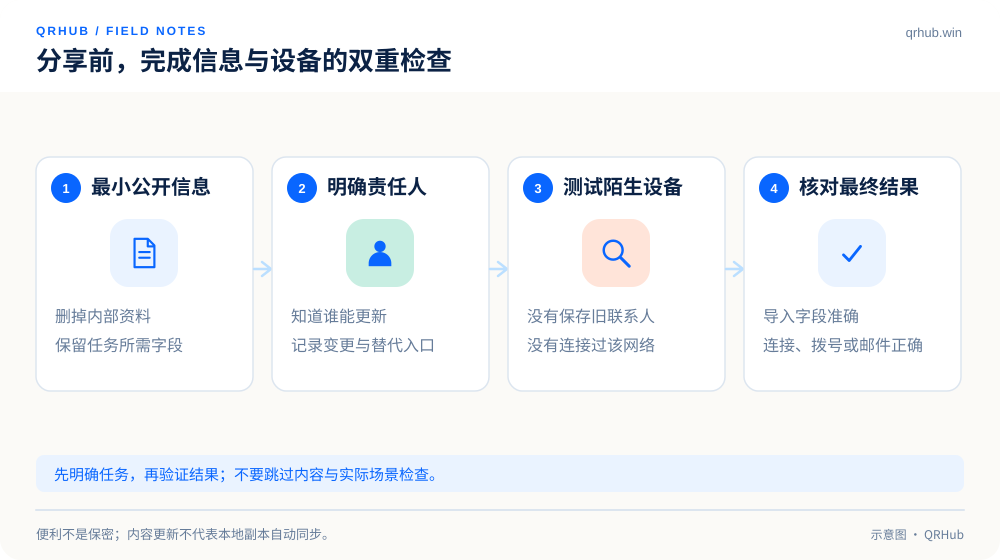
Do not test only on your own phone: your device may already have the contact saved, the right app installed or the network in its history. Borrow a device that has none of that and go from the scan onwards, checking what the system actually prompts, how the fields display and what the result is.
For a card, check the imported contact for garbled or misplaced fields; for a network code, check which network it really joined; for email and phone entries, check where they actually arrive. Then look again at whether the public fields are appropriate to be photographed, forwarded and kept for a long time. Convenient sharing should rest on content that is clear and access that is appropriate.
Sources and further reading
- RFC 6350, vCard Format Specification: the generated version and device support each need testing. https://www.rfc-editor.org/rfc/rfc6350
- ZXing, Barcode Contents: WiFi configuration content and character escaping. https://github.com/zxing/zxing/wiki/Barcode-Contents#wi-fi-network-config-android-ios-11
Related reading