Start with a link: getting your first QR code right
More than generating an image: pick the content type, check the destination, download the file and test it on real material, so the first scan works end to end.
Key takeaways
- Decide what a scan should accomplish before you choose a QR code type.
- Check the link, its access permissions and the mobile page before you start styling.
- Keep the original content and the export record, and run a real test before printing.
A QR code is worth what it enables, not how elaborate its pattern looks: what counts is whether the person who picks up their phone can finish the next step you intended. That step might be reading a product guide, saving a contact, or simply opening a menu. On a first attempt you do not need to study every setting at once — getting the path right, from where the code is scanned to what appears and what happens next, usually matters more than choosing colors.
This guide follows the QRHub flow of creating, customizing and sharing. The website shows entry points for links, text, email, WiFi and business cards, along with appearance options such as color, shape, frame and logo; what is actually available still depends on the current page and your account.[1]
01 Write down one clear goal
Rewrite “I need a QR code” as a single complete user task, such as “a customer scans the table card and sees today’s menu”. That sentence decides the content type on its own: if a mobile page already exists, use a link; if you only want to share a short note that will not change, text will do; if you want the other person to save a contact, consider a business card.
Do not point every QR code at the brand homepage and leave people to search again. A homepage is the right place to introduce a brand, but “see how to install it” on packaging should lead straight to the installation guide, and “register now” on an event poster should lead straight to the sign-up form. The title, the prompt next to the code and the first screen of the landing page should all describe the same thing.
| What the other person should do | The better starting point | What to check before generating |
|---|---|---|
| Open a menu, a product page or a sign-up page | Link | Mobile access, public permissions, page content |
| Save a contact | Business card | Whether name, work email and phone number are accurate |
| Join a guest network | WiFi | Network name, password, guest network isolation |
| Read a short, fixed note | Text | Whether it is short enough and free of sensitive details |
02 Check the content before you start designing
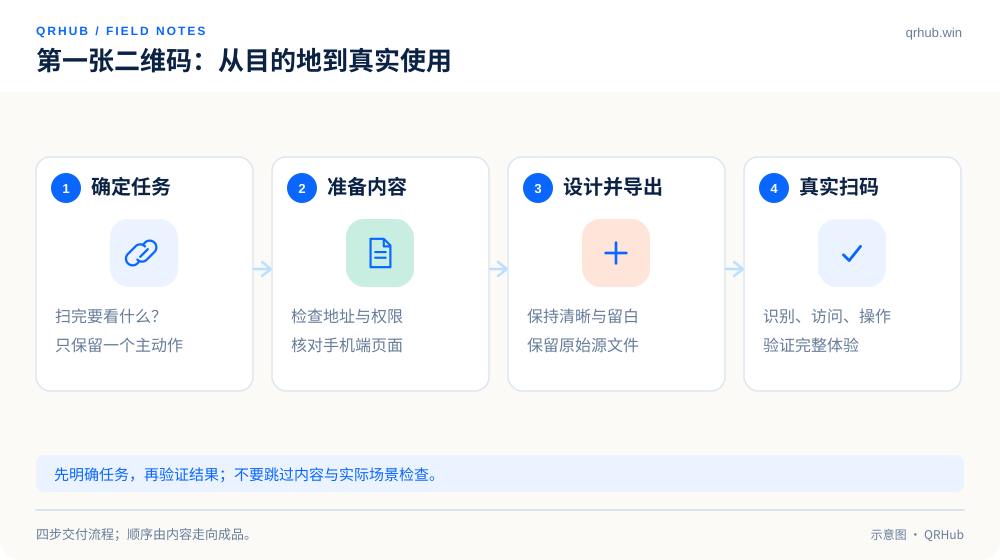
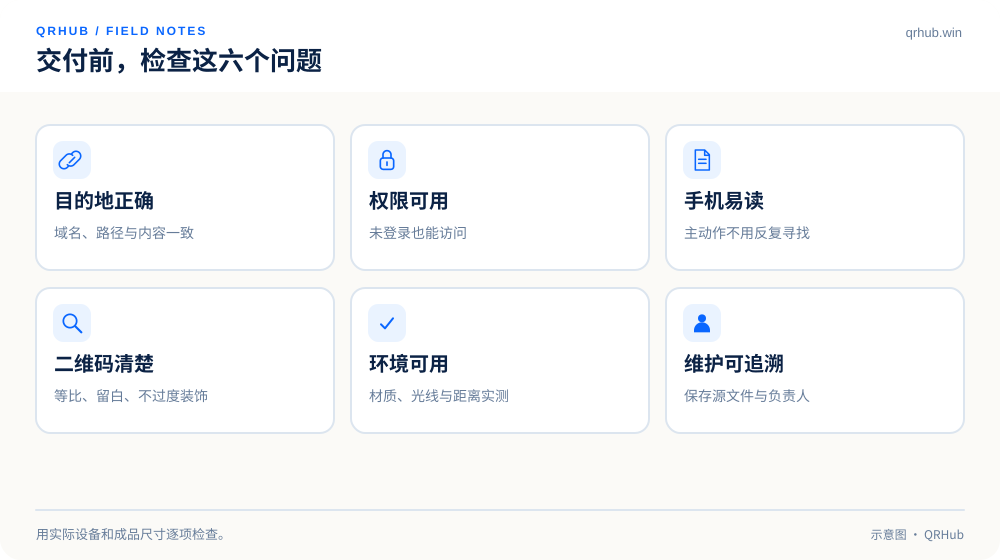
Paste the full link into a browser and actually open it once. Confirm the domain spelling, the page title, the language and the access permissions. This matters most for addresses copied out of cloud drives or internal collaboration tools: being able to open one while signed in does not mean a customer can. Check again in a signed-out window or on another device to catch permission problems early.
You can use https://qrhub.win/ as a sample to get familiar with the flow, then swap in your real destination before sharing it. Never publish a local address, a temporary development preview or a link containing sign-in credentials. Spaces inside the link, stray punctuation left over from copying and trailing line breaks are all worth cleaning up before you generate the code.
The same applies when the content is a business card or a network configuration. A QR code is not a safe for hidden information: data a phone can read is not something to treat as a secret that only you know. Keep internal administrator addresses, admin console URLs and production keys off public material.
03 Keep the first styling pass small
Start from dark dots on a light background with the default shapes, then change one brand color or add a small logo. If recognition problems show up, it is far easier to tell which change caused them. Do not stack a transparent background, a subtle gradient, an elaborate frame and a large logo all at once and then rely on repeated downloads to get lucky.
Leave the area around the code empty. DENSO WAVE’s guidance for a standard QR Code calls for a quiet zone four modules wide on every side; a module here is the smallest square the code is built from, not any four screen pixels. Do not crop that margin away to “save space”.[2]
The preview inside a generator is fine for checking content and the general look, but it is no substitute for the real environment. A code zoomed in on a monitor looks perfectly clear; shrunk into the corner of a business card or printed on a reflective cup sleeve, the result can be different.
04 Choose the export file by how it will be used
For an ordinary web page or document, a PNG at a suitable size will do; if a designer will lay it out or you need to keep scaling it, keep an SVG. SVG describes vector graphics and holds a clean edge at different sizes, but whether the code is finally recognized still depends on the real size and the print quality.[3]
Do not keep forwarding screenshots through a chat app as a print source. Keep the original export and name the file after its purpose, such as menu-counter-v1, instead of leaving behind a pile of “QR code final version” files nobody can tell apart. For one destination used in several placements, keep a separate record so the material stays maintainable.
05 Turn a generated code into a delivered one
Test in at least the two phone environments you expect, from what the camera recognizes all the way to the page loading and the key action completing. Check low light, a normal scanning distance, the signed-out state, and a printed proof. The record does not need to be elaborate: device, material size, result and date are enough.
If the code is not recognized, go back to dark square dots on a white background, remove the logo, confirm the original content opens, and then add the design back one item at a time. If it scans but the page will not open, investigate the network, the domain and the permissions rather than repeatedly changing the code’s colors.
Finally, keep three things: the encoded content, the image actually used, and the person responsible for maintaining it. For a link that will change, record when it was updated as well. A QR code is not a design file that ends at export; it is an entry point to a service that needs looking after.
One last minute before you start
Read the prompt next to the code once, scan it with a phone, check the landing page, and hand the source file to whoever publishes it. Do those four small things and your first QR code is not merely “generated”; it is ready to enter a real workflow.
Sources and further reading
- QRHub website: product entry points and the generation flow. Consulted 2026-10-07. https://qrhub.win/
- DENSO WAVE, Point for determining the code area. https://www.qrcode.com/en/howto/code.html
- MDN, SVG: Scalable Vector Graphics. https://developer.mozilla.org/en-US/docs/Web/SVG
Related reading